
How to Sync to Pavlovia without PsychoPy
Important
If you are using a version of PsychoPy older than 2025.1.1, you will not be able to sync directly from the PsychoPy app (as of December 27th 2025). Here are a few ways to upload and update your Pavlovia projects independently of the PsychoPy app.
Directly on Pavlovia.org
Updating an existing Pavlovia project
Go to Pavlovia.org > Dashboard > Experiments and select the experiment you wish to update.
Select “View Code” on the project page. This will take you to the GitLab repository for this experiment.
Updating the experiment files (.psyexp and .js)
On the GitLab page, select the file you wish to replace/update and click “Replace”. Add the new file you want to replace it with and include a commit message.
If you are updating the experiment file itself, update both the `.psyexp` file and the `.js` file (exportable from PsychoPy Builder).
Adding new files and folders
To add new files/resources or folders, select “Web IDE” on the GitLab page.
You can create a new directory or upload files directly.
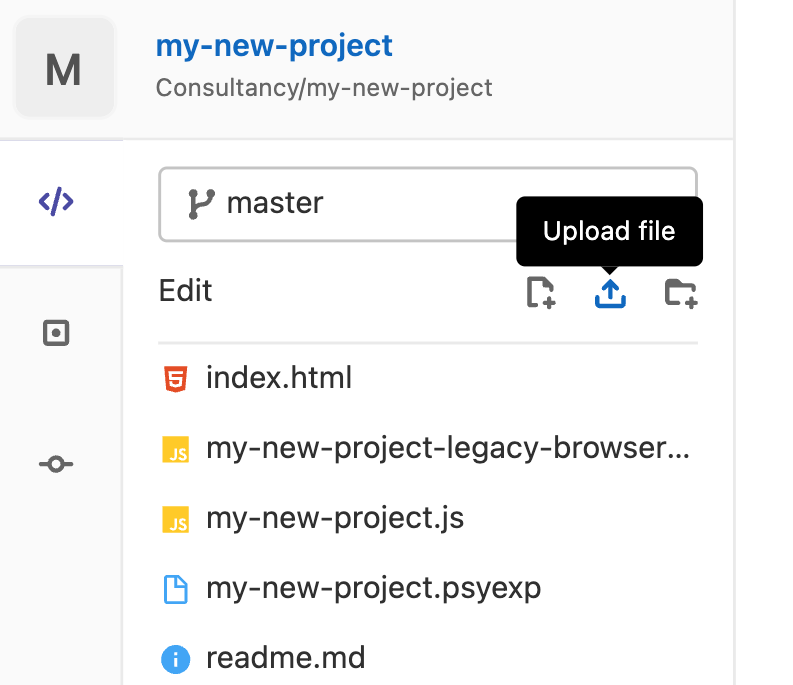
Make sure to commit to the Master branch, not a new branch.
Creating a new Pavlovia project
Go to Pavlovia.org and access GitLab by changing the URL to https://gitlab.pavlovia.org/. This will take you to the GitLab repository hosting service.
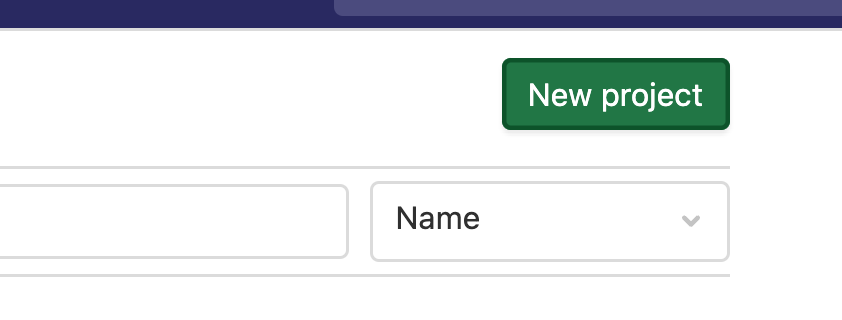
Select “New Project” > “Create Blank Project”.
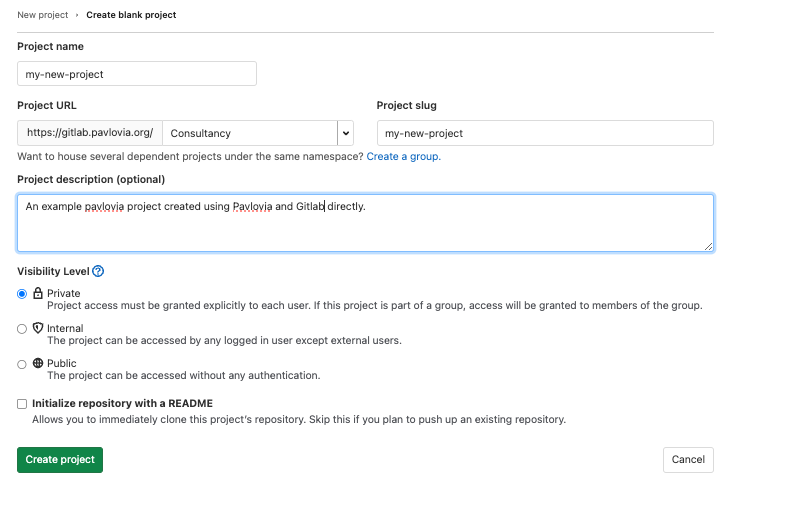
Give your project a name and optionally a description. Leave all other settings as default.
On the new project page, select “New File” to add the necessary experiment files. - Ensure you include both a .psyexp and a .js file with the same name as your project. - For example, if your project is my-new-project, name your PsychoPy file my-new-project.psyexp and export the .js file as my-new-project.js.
Go back to Pavlovia.org > Dashboard > Experiments and find your new project at the top of the list. You can now interact with it normally (change mode from inactive to piloting, use the pilot button to test, etc.).